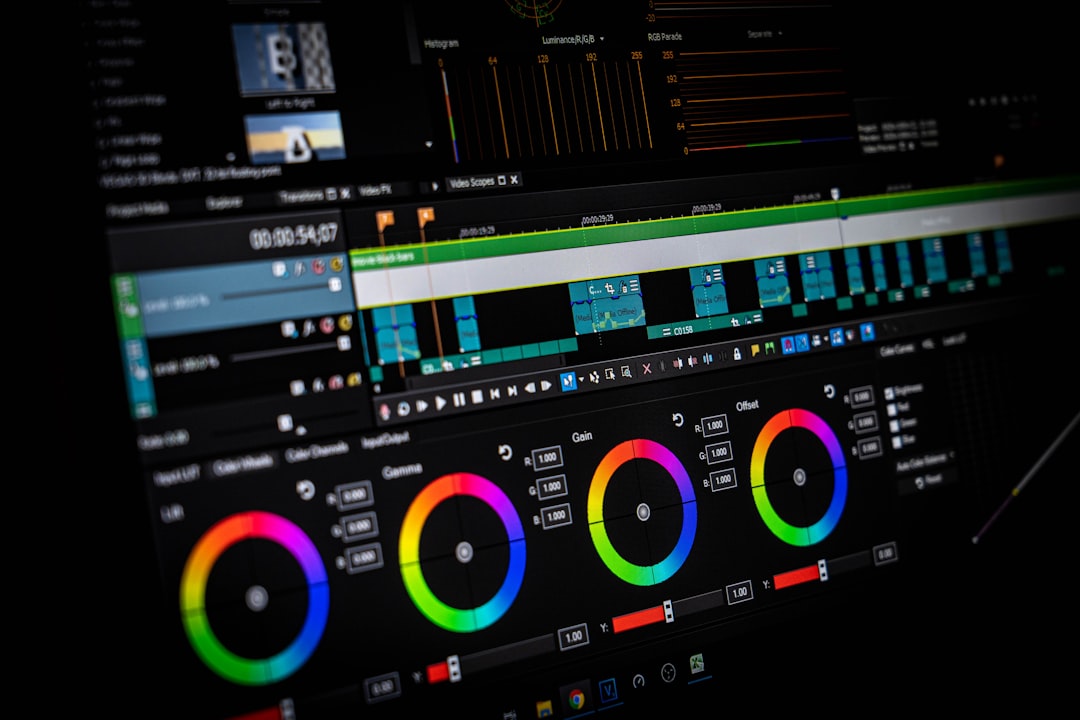
Time is money in video production, and an optimized Premiere Pro workflow can literally save you hours on every project. Professional editors don't work harder; they work smarter by implementing efficient systems, keyboard shortcuts, and organizational strategies that streamline every aspect of the editing process.
Essential Keyboard Shortcuts That Transform Your Speed
Keyboard shortcuts are the foundation of efficient editing. While Premiere Pro includes hundreds of shortcuts, mastering even a dozen core commands will dramatically increase your speed. The most crucial shortcut is simply the spacebar for play/pause, but professionals rely on far more sophisticated key combinations.
Learn to ripple delete with Shift+Delete, which removes a clip and closes the gap in one action. The J-K-L keys control playback speed, with J for reverse, K for pause, and L for forward play. Pressing L multiple times increases playback speed, perfect for quickly reviewing long takes. These become second nature with practice, eliminating the need to constantly move your mouse to timeline controls.
Creating Custom Keyboard Shortcuts
Premiere Pro allows complete keyboard customization, and professional editors tailor shortcuts to their specific needs. Access this through Edit > Keyboard Shortcuts. Map frequently used effects, transitions, or tools to easily accessible keys. Many professionals map color correction panels, audio gain adjustments, and nest sequence commands to single keystrokes.
Consider your physical keyboard layout when customizing. Keys near your left hand work best since your right hand typically controls the mouse. Create shortcuts that make logical sense to you; if you think of match frame and want to hit M-F, configure it that way. Your muscle memory will thank you after editing your hundredth project.

Implementing a Proxy Workflow
Modern cameras shoot incredibly high-resolution footage that can bring even powerful computers to their knees. Proxy workflows solve this by creating lower-resolution copies for editing, then automatically reconnecting to full-resolution media for export. This is essential when working with 4K, 6K, or 8K footage.
Premiere Pro offers two proxy creation methods: ingest proxies during import or generate them from existing media. For most workflows, creating proxies during import makes sense. Set your proxy preset to H.264 at 25% or 50% of original resolution. These files are small enough for smooth playback while retaining enough detail for accurate editing decisions.
Project Organization Best Practices
A well-organized project saves countless minutes searching for assets and prevents the nightmare of missing files. Create a standard folder structure you use for every project. Most professionals organize bins by categories: footage, audio, graphics, sequences, and exports. Within footage, further organize by scene, camera, or shooting day depending on your project type.
Use color labels consistently to indicate clip status. Many editors use green for approved takes, red for rejects, and yellow for selects under review. Premiere Pro allows searching and filtering by label, making it easy to display only the clips you need. This system becomes invaluable when working with hundreds of clips across multiple sequences.
Optimizing Timeline Settings
Your sequence settings directly impact both playback performance and export quality. Always match your sequence settings to your delivery format, not your source footage. If you're delivering 1080p content, edit in a 1080p sequence even if you shot in 4K. Premiere Pro scales down the footage automatically, improving playback performance while maintaining quality.
Adjust your playback resolution in the program monitor when dealing with effects-heavy sequences. Switching from full quality to half or quarter resolution during editing provides much smoother playback. Remember to switch back to full quality for final review and export. This simple toggle, accessible via the wrench icon in the program monitor, is one of the most underutilized performance tools.
Creating Custom Workspace Layouts
Premiere Pro's workspace system allows you to configure panel layouts for different tasks. The default editing workspace places the timeline, program monitor, and project panel prominently, but you should create custom workspaces for specific tasks like color correction, audio mixing, or graphics work.
For color work, maximize the Lumetri Color panel and program monitor while minimizing the timeline. For audio editing, expand the audio track mixer and essential sound panel. Save these as custom workspaces, accessible from the Window > Workspaces menu or via keyboard shortcuts you assign. Switching layouts based on your current task keeps relevant tools at your fingertips without clutter.

Using Adjustment Layers Effectively
Adjustment layers are one of Premiere Pro's most powerful but underused features. Instead of applying the same effect to multiple clips individually, apply effects to an adjustment layer positioned above your footage. This affects everything beneath it, perfect for scene-wide color grades, vignettes, or transitions.
Create adjustment layers through the Project panel's New Item menu. Name them clearly to indicate their purpose. Adjustment layers can be trimmed, moved, and keyframed just like regular clips. This non-destructive approach means you can easily modify or remove effects without touching your original footage, and one change updates the entire affected section.
Leveraging Nested Sequences
Nested sequences treat an entire sequence as a single clip within another sequence. This organizational tool is essential for complex projects. Use nesting to group related clips together, making your main timeline cleaner and more manageable. Applying effects to a nested sequence affects all contained clips simultaneously.
Nesting is also crucial for certain effects and animations. Speed ramps, for instance, work better on nested sequences. Create your edit in one sequence, nest it into your main timeline, then apply time remapping to the nested clip. This approach provides much smoother results than applying speed changes to individual clips.
Efficient Media Management
Proper media management prevents the dreaded "media offline" message. Always use Premiere Pro's media browser to import footage rather than dragging files directly from Finder or Explorer. This ensures Premiere correctly tracks file locations. When organizing files outside Premiere, use the "Project Manager" to consolidate or transcode your project, automatically copying relevant media to a new location.
For long-term archival, use the Project Manager to collect files and copy to a new location before removing originals from your working drive. This creates a self-contained project folder with all necessary media, making it easy to reopen projects months or years later without missing media issues.
Optimizing Playback Performance
If your timeline stutters during playback, several settings can improve performance beyond proxies. Reduce the number of undo levels in preferences; the default 32 levels consume significant RAM. Disable clip overlays you don't need during editing. Close background applications, especially web browsers that consume substantial system resources.
Render smart render sections before playback or export. Premiere Pro indicates sections requiring rendering with a colored bar above the timeline. Generate these by selecting the problem area and choosing Sequence > Render In to Out. This pre-processes effects, ensuring smooth playback and faster exports.
Conclusion
Workflow optimization in Premiere Pro isn't about memorizing every feature; it's about implementing systems that eliminate repetitive tasks and keep you focused on creative decisions. Start by mastering essential keyboard shortcuts, implement a proxy workflow for high-resolution footage, and develop a consistent organizational system. These foundational improvements will transform your editing speed, allowing you to take on more projects or simply finish earlier. Remember that the most efficient workflow is the one that works for your specific needs, so adapt these techniques to match your editing style.